Packing App Code
In this article the process of preparing your ProconTEL application to be used as App Template is described.
Preparing App files
We assume that you have written your App. If not, click here for some guidance.
After finishing implementation of your App logic, you have to prepare it to be able to upload it with ProconTEL UI.
Preparation of your App files can vary depending on framework you've written your App with.
.NET 6 / .NET 8 / .NET 10
Building your App
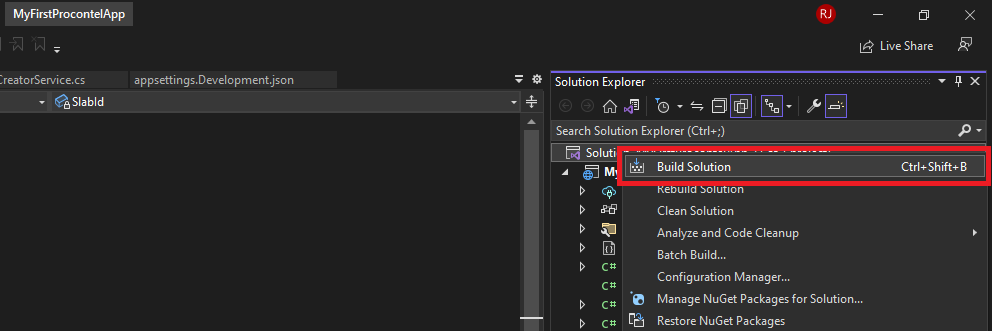
To build your application in .NET 6 or .NET 8 using Visual Studio, right-click on the solution in the Solution Explorer and select Build Solution. Alternatively, use the shortcut Ctrl+Shift+B.
💡 For production or deployment scenarios, we recommend publishing the application instead of just building it. Use the
dotnet publishcommand or Visual Studio's Publish feature for a cleaner output and proper dependency handling.
Publishing via Command Line
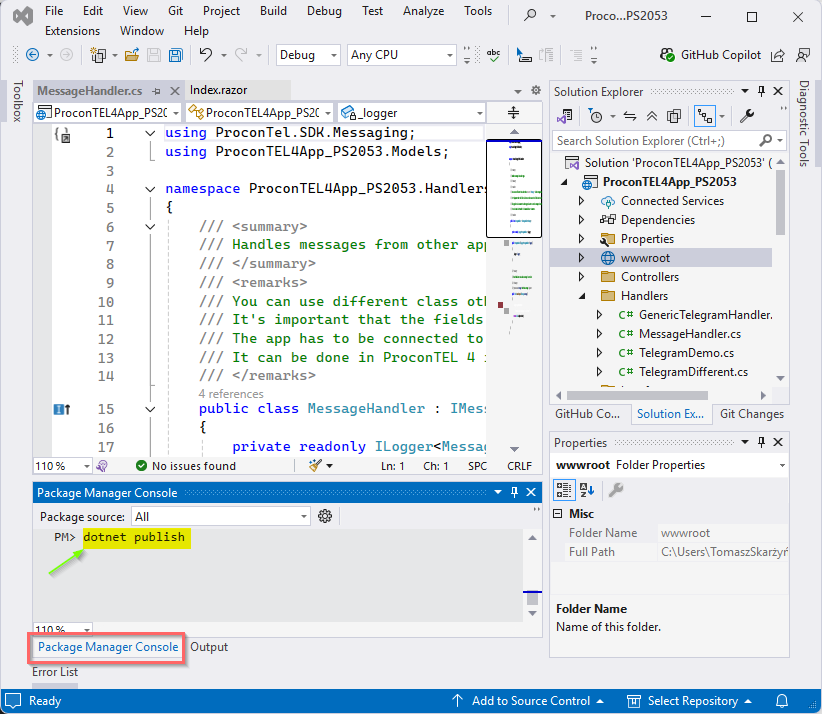
This screenshot demonstrates publishing the app using the CLI:
dotnet publish
Publishing via Visual Studio GUI
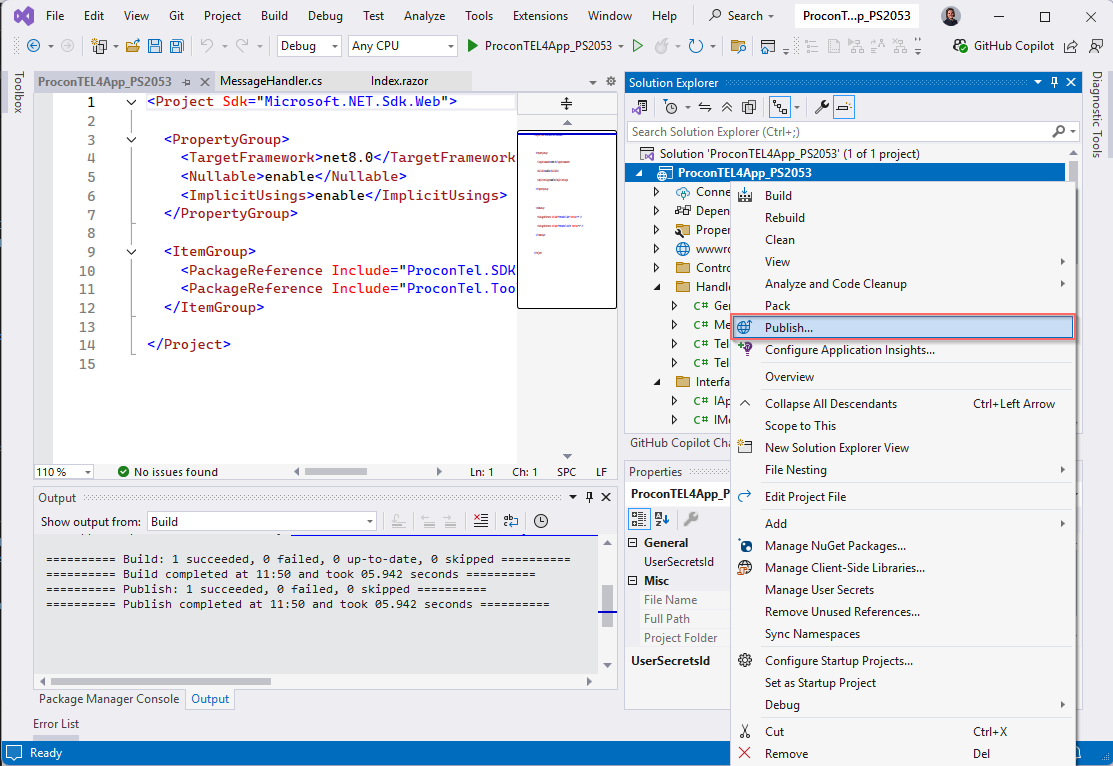
Right-click the project and select Publish from the context menu.
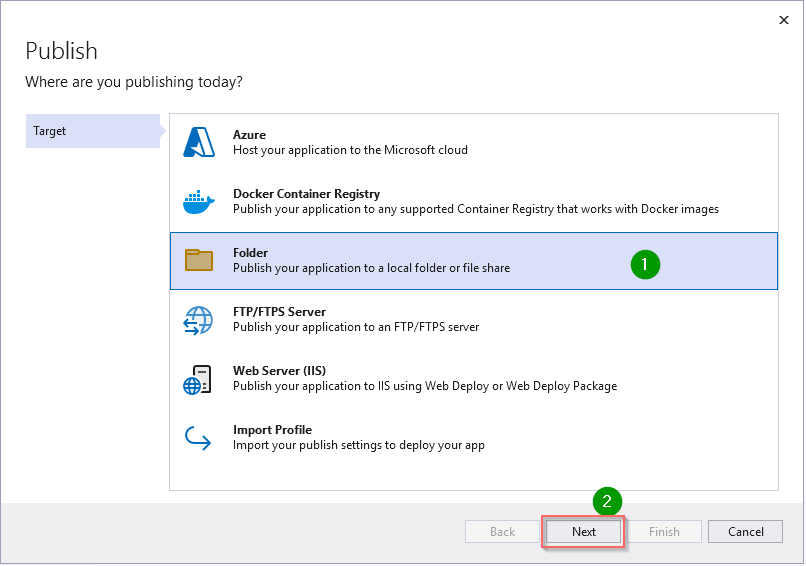
The publishing wizard will guide you through creating a profile. Choose Folder as the target method (you will later zip this output).
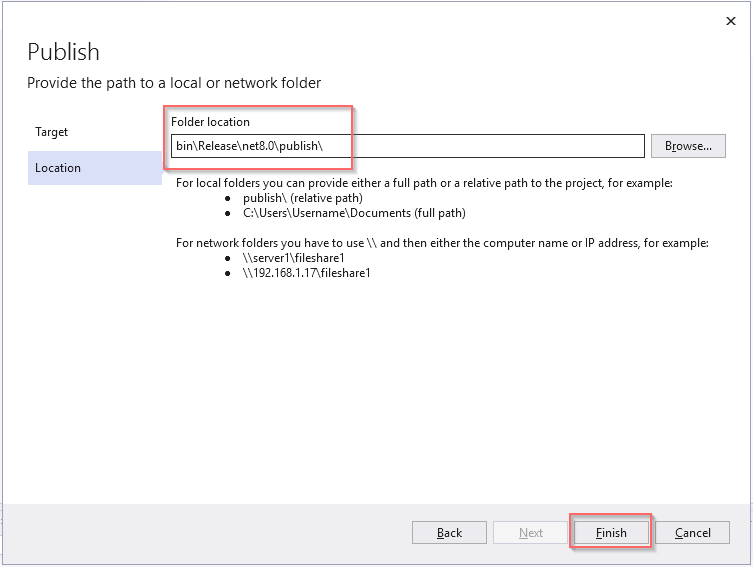
Specify the output folder. This location can be customized. By default, it will be:
bin\Release\net10.0\publish
Complete the wizard by clicking Finish in the final step.
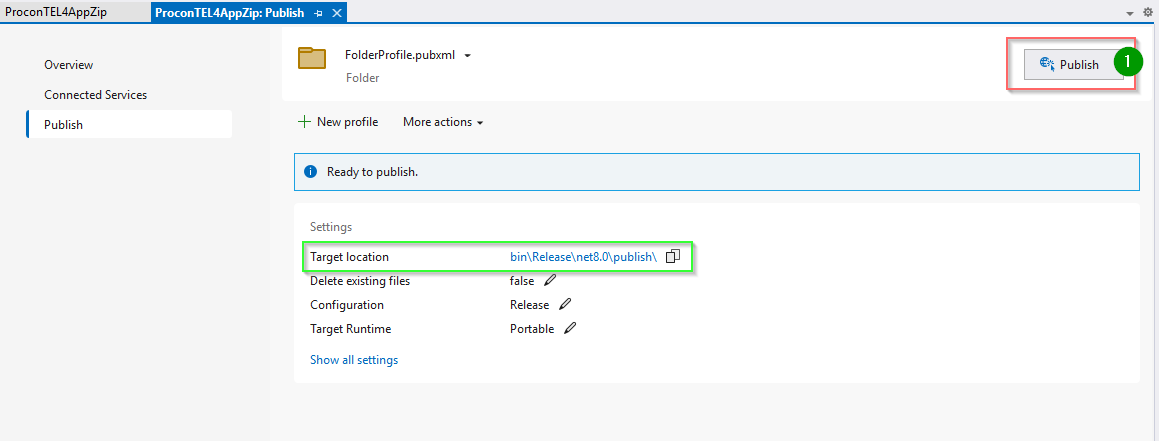
Click Publish to generate the final, ready-to-distribute application output.
Packing Your Application
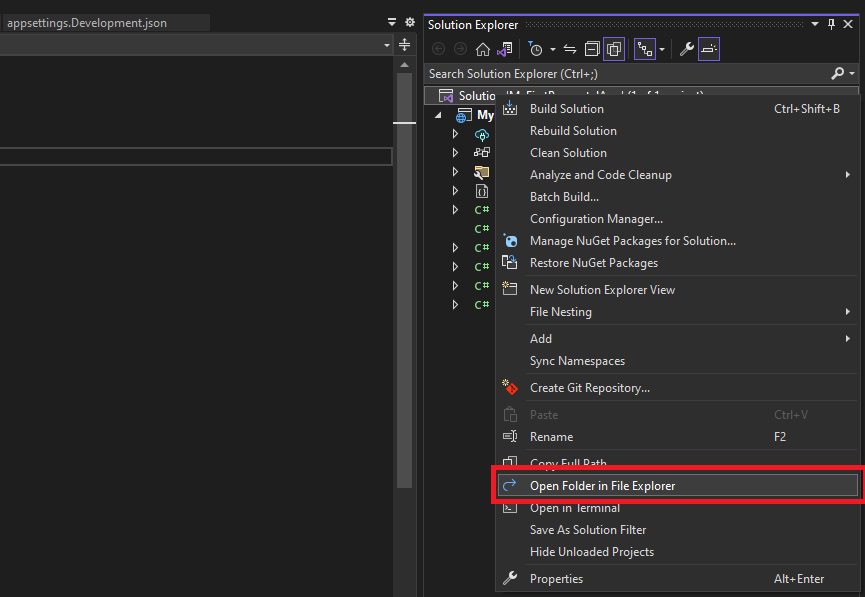
After publishing or building your app, right-click the solution in Visual Studio and select Open Folder in File Explorer.
Navigate to the appropriate output directory:
If you used Publish (recommended), go to:
AppProjectName\bin\Release\net10.0\publishIf you used Build instead, and did not publish, go to:
AppProjectName\bin\Release\net10.0(or
Debug\net10.0if using the Debug configuration)
Ensure you're checking the correct path depending on whether you published or only built the application. The publish subdirectory exists only when publishing; it's absent if you simply built the project.
📦 Important for Custom UIs:
If your app has a frontend (like a Blazor Server UI), make sure the .zip file includes all needed static files—like CSS, JavaScript, and the whole wwwroot folder. Don’t copy files one by one. Zip the full folder structure to keep paths correct.
✅ That’s why Publish is better than just Build. The publish folder already includes everything—DLLs, dependencies, and static files—so it's ready to zip and upload.
After that, go to the correct output folder, select all files, and zip them using your archiver or Windows built-in zip tool.
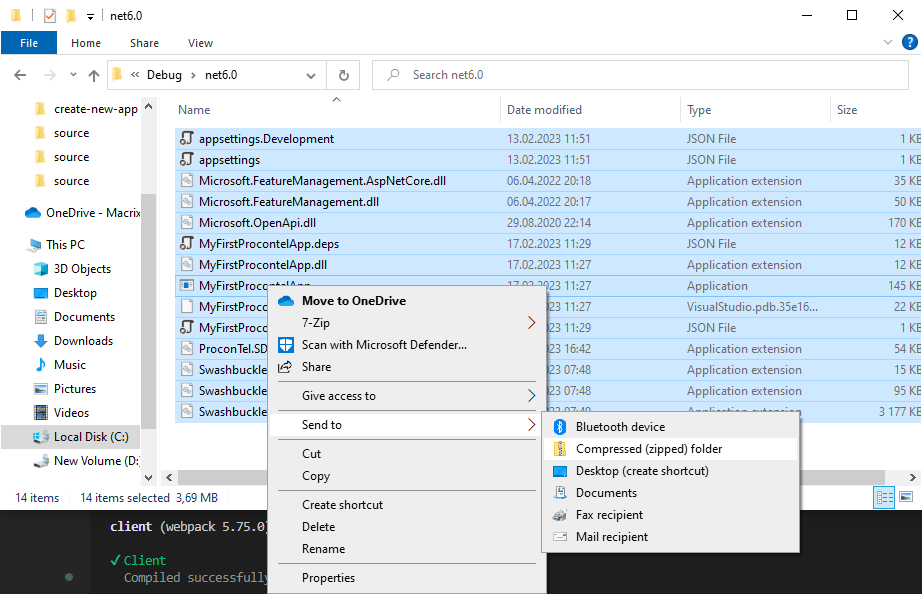
It is best practice to name your archive like the *.dll file of your build. In our example, it would be MyFirstProcontelApp.zip.
Uploading App template
Process of uploading your App is described here.