App Template Tags
The App Template revision is a very useful mechanism, but during the development of your App, you might reach the point when simple number-based ordering of your App Template revisions is not enough: you'd have to remember (or use an external tool) which number contains what code changes. ProconTel4 addresses this problem with App Template revision tags.
The tag is an additional metadata (keyword or term) associated with a given App Template revision; it works similarly to what you might know from the Git version control system. Tags are created when you upload your App Template to the ProconTel platform. It is only possible to add tags using ProconTel CLI: tags can be provided in the CLI push command or described in the .procontel file. Multiple tags are allowed. Instructions for adding a tag are available on the Push command page; see the --tag switch.
Adding tags
You can add tags in two ways:
with the
--tagoption of the Push command, separating tags with commas:pct push --alias basic-app --tag "Release 1.0,stable"in the
tagslist of an App in the .procontel file:apps:
basic-app:
runtime: dotnet
tags:
- Release 1.0
- stable
If both are provided, the tags from the --tag option replace the tags from the .procontel file.
Tag restrictions
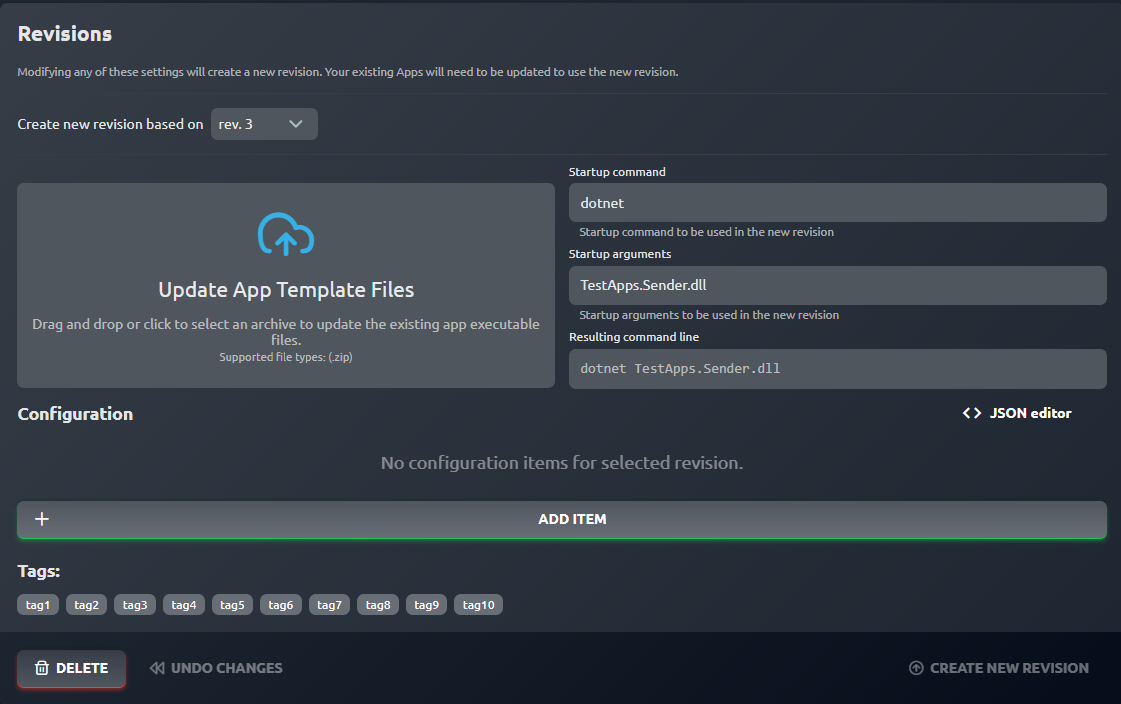
- At most 10 tags per App Template revision.
- Each tag can have at most 30 characters.
- A tag cannot contain a comma. In the
--tagoption a comma always separates tags, even inside quotes. - Leading and trailing spaces are removed, empty entries are ignored and duplicates are pushed only once.
If any restriction is violated, the CLI reports the invalid tag and does not push the App Template.
Tags on ProconTel's UI
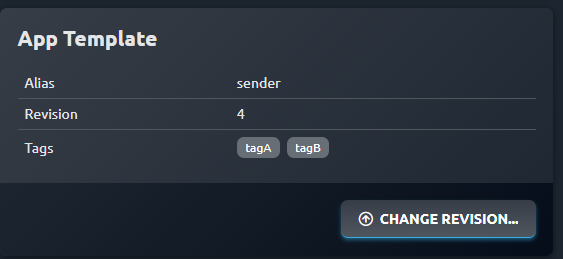
Once you have created an App Template revision with tags, you can review them in the details view of a given App Template:
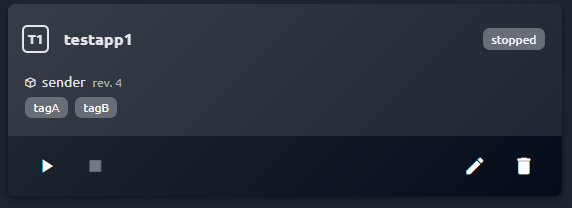
If an App uses a revision that contains tags, then they will be displayed in:
Apps tiles and list views:

the details of your App: