App Templates Cleanup
The Clean Up Templates feature allows administrators to remove outdated or unnecessary application template revisions. It helps keep the repository organized while preserving the required template versions.
Opening the Cleanup Dialog
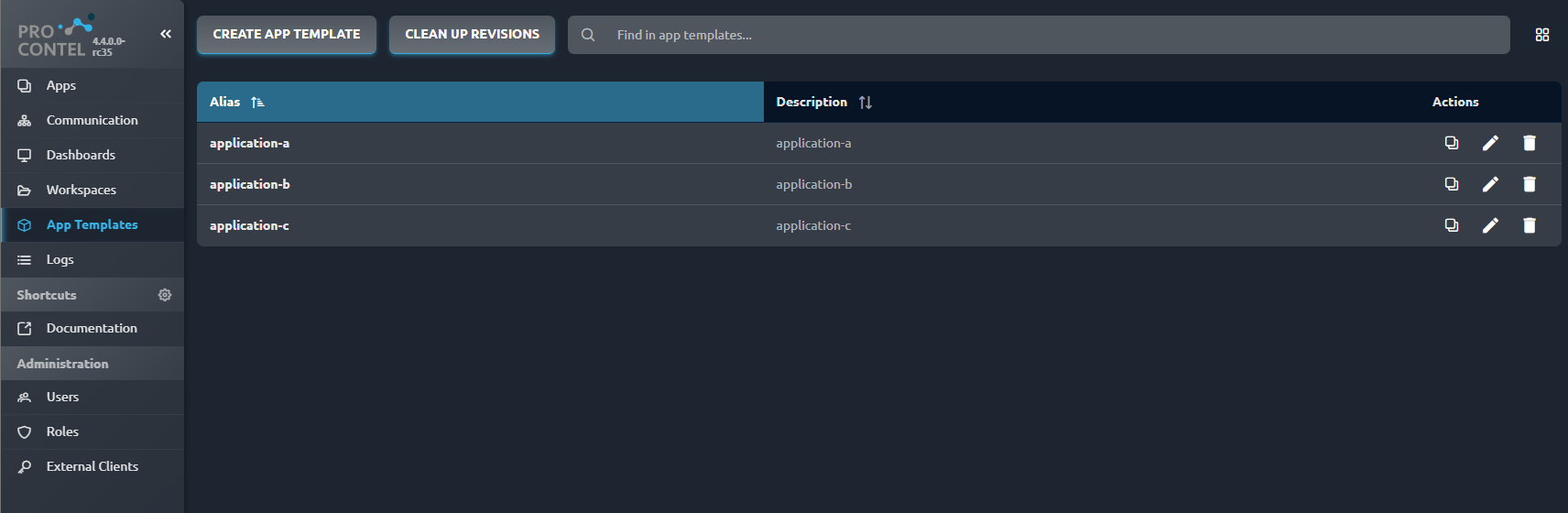
- Navigate to App Templates.
- Click Clean Up Revisions.
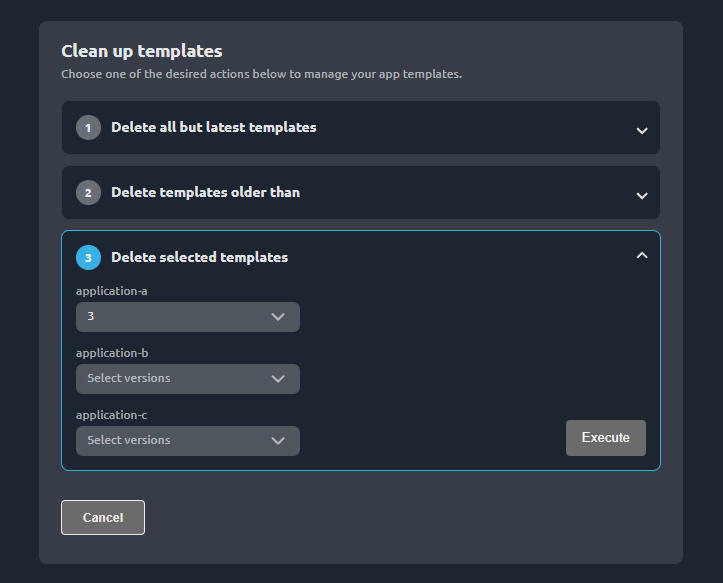
The dialog provides three cleanup options.
Option 1 – Delete All but Latest Templates
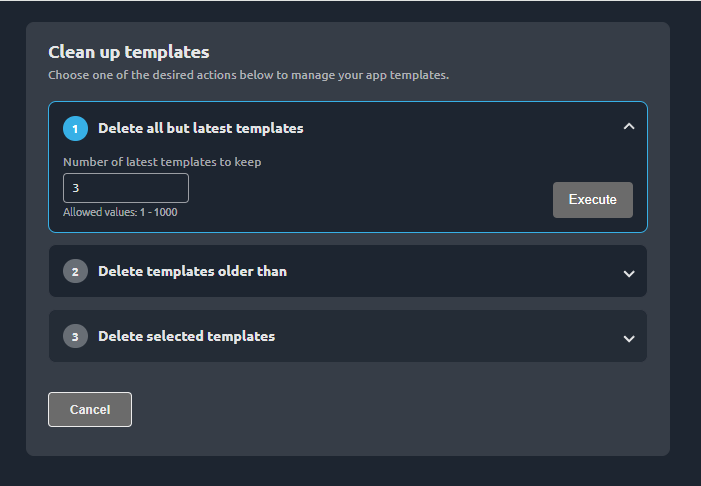
Use this option to keep only the most recent revisions of every application template.
Steps
- Expand Delete all but latest templates.
- Enter the number of latest revisions you want to keep.
- Allowed values: 1–1000
- Click Execute.
- Confirm the operation in the confirmation dialog.
- After the cleanup completes, a success notification is displayed.
Example
If an application has 10 revisions and you enter 3, only the latest three revisions are kept. The remaining seven revisions are permanently deleted.
Option 2 – Delete Templates Older Than
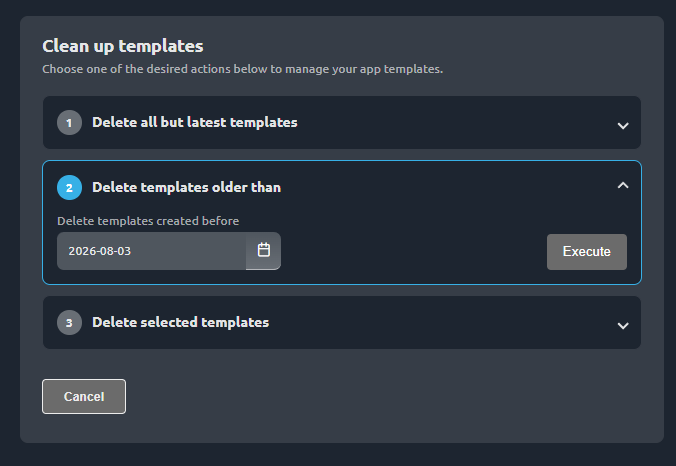
Use this option to remove all template revisions created before a specific date.
Steps
- Expand Delete templates older than.
- Select a cutoff date using the date picker.
- Click Execute.
- Confirm the operation.
- A success notification is displayed after the cleanup finishes.
Notes
- Only revisions created before the selected date are deleted.
- Revisions created on or after the selected date remain unchanged.
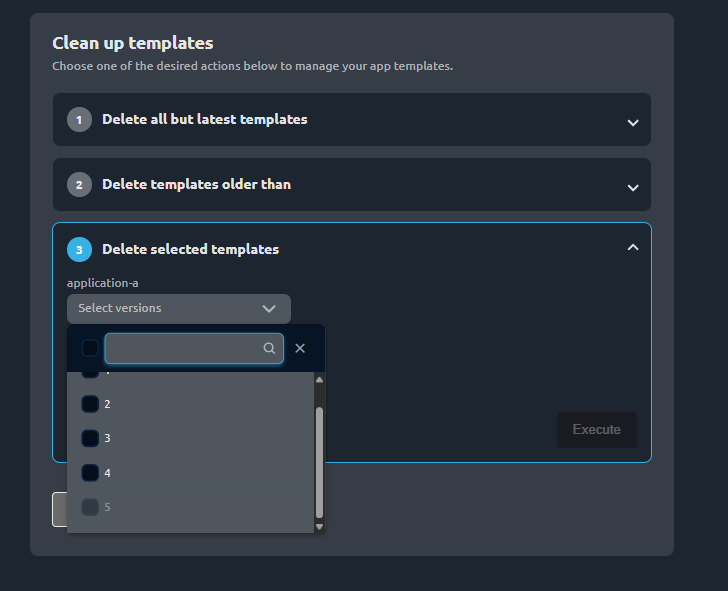
Option 3 – Delete Selected Templates
Use this option when you want to remove specific revisions of selected application templates.
Steps
- Expand Delete selected templates.
- For each application:
- Open the Select versions dropdown.
- Select one or more template revisions.
- Optionally use the search field to quickly locate a revision.
- Repeat the process for additional applications if needed.
- Click Execute.
- Confirm the deletion.
- After the operation completes, a success notification displays the number of deleted revisions.
Notes
- Multiple revisions can be selected for the same application.
- Multiple applications can be included in a single cleanup operation.
- The Execute button remains disabled until at least one revision is selected.
Confirmation
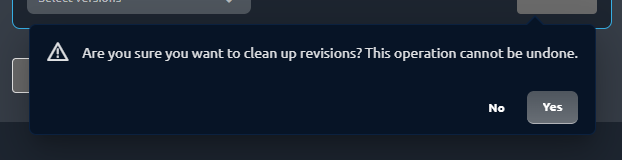
Before any cleanup operation is performed, the system displays the following confirmation dialog:
Are you sure you want to clean up revisions? This operation cannot be undone.
Choose:
- Yes – Proceed with the cleanup.
- No – Cancel the operation.
Success Notification
When the cleanup completes successfully, the following notification is displayed:
Successfully deleted: N
Where N is the number of revisions that were removed.

Important Notes
- Cleanup operations permanently delete application template revisions.
- Deleted revisions cannot be recovered.
- Ensure that the selected revisions are no longer required before confirming the operation.
- It is recommended to keep recent revisions to maintain rollback capability if needed.
- Template revisions that are currently in use cannot be deleted.
- In the Delete all but latest templates and Delete templates older than options, revisions that are currently in use are automatically skipped during the cleanup process.
- In the Delete selected templates option, revisions that are currently in use cannot be selected for deletion.