Remote Apps
1. What is Remote App?
Remote app is a type of application that can be hosted and debugged outside the ProconTEL Cluster. However, it still leverages ProconTEL's system features, such as messaging, logging, and more.
2. Creating Remote App in ProconTEL
To create a remote app:
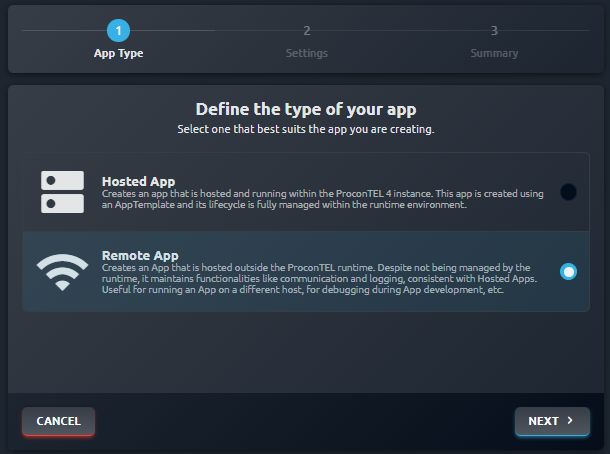
Initiate a new app creation and select the type as "remote app".
It's necessary to create an app port mapping for the application. This involves exposing a selected port outside the cluster and mapping it to the application port, which should be
22for Remote App. Exposure type of app port mapping isnode port.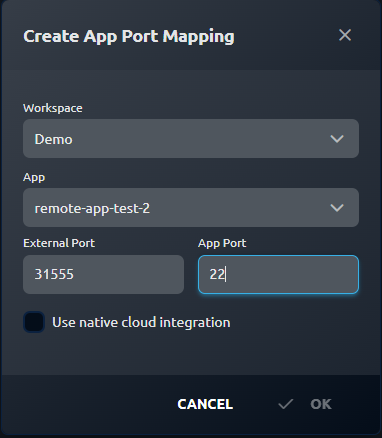
The exposed
External Portfrom the above step is the one you'll reference in the method underconfig.ServerExposedPort.The
config.ServerAddressshould be set to the ProconTEL server's address.config.Passwordis the unique identifier for the app and should be copied from the details of the newly created Remote App in the ProconTEL UI.
3. ProconTEL Remote SDK Integration
To integrate the ProconTEL Remote SDK into your application:
- Download the
ProconTel.SDK.Remotepackage from the Macrix public repository: https://nexus.macrix.eu/repository/pct2022/. - In your application, initiate the remote SDK as shown below:
var builder = WebApplication.CreateBuilder(args);

// Configure the Remote SDK
builder.Services.AddRemoteApp(builder.Configuration, config =>
{
    config.ServerExposedPort = 31555;
    config.ServerAddress = "procontel.dev";
    config.Password = "2c194f2f-dfb8-4329-8a3a-ac921b35a2b2";
});

// Additional ProconTEL SDK configurations
builder.WebHost.ConfigureProconTel(builder.Configuration);
builder.Services.AddProconTel(builder.Configuration);

var app = builder.Build();
app.UsePublicApp(builder.Configuration).AddCustomUserInterface("swagger", "/swagger");
app.UseProconTel();
app.MapProconTel();

await app.RunAsync();
Ensure that you replace the ServerExposedPort, ServerAddress, and Password with the values that you've set up in the ProconTel UI.
4. Connecting Remote App to ProconTEL
To connect your Remote App to ProconTEL:
- Initiate the remote application from the ProconTEL platform. The status of the remote app should initially be 'disconnected'. This indicates that the ProconTEL platform is waiting for the actual application to initiate the connection.
- Start your remote application, which could be hosted anywhere outside the ProconTEL Cluster.
- Once your remote application is running, go back to the ProconTEL UI. You should now see that the status of your remote app has changed to 'connected', signifying a successful connection.