Export & Import
Export Workspace
Description:
This feature allows users to export the current Workspace setup into a portable format. This facilitates easy sharing or backup.
Steps:
- Navigate to the workspaces view.

- Click on the button to open export options. It is possible to export multiple workspaces and dashboards and include app templates. At least 1 workspace should be selected for export. If a dashboard is selected, all the workspaces with the apps it is using have to be included in the export.
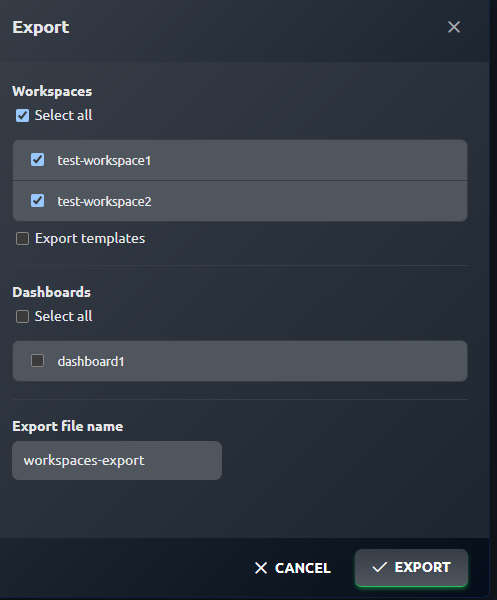
- Select the options and click "Export". The .zip file with the specified name (workspaces-export.zip by default) should be downloaded.
Import Workspace
Description:
Import a previously exported workspaces to restore the work environment.
If the app templates are not included in the export file, it is required that the imported Apps use AppTemplates with aliases that match the App Templates present in the target environment. The imported apps will use the latest revision of those app templates.
If the app templates are included in the export file, they will either be added as a new app or the next revision, so the revision number of the imported apps might not match the ones in the original environment, but the app files themselves are the same.
Exporting a Remote Application from a Kubernetes running environment and importing it on a native hosting environment is not supported. This operation will result in an exception.
Steps:
Navigate to the workspaces view.
Click on the Import button.

- In the newly opened prompt window, upload a file with the previously exported workspaces.
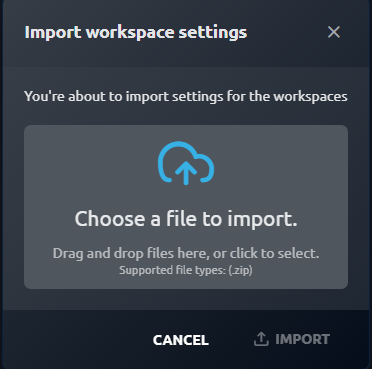
- Begin the import by clicking the
Importbutton.

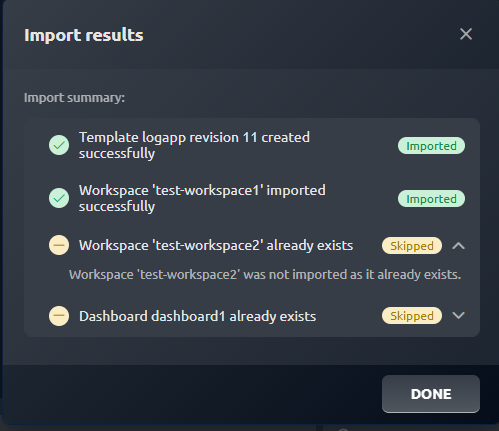
- After the import, the results dialog will appear.