Uploading App Templates
Your first App Template
If you do not yet have a ProconTEL 4 compatible App and want to know how to write your first App, refer to Creating PCT4 App Template to get started.
Once you have a published App Template ready, you can use it in ProconTEL 4 in one of these two easy ways:
Method 1: Graphical UI
You can easily manage and create App Templates using the ProconTEL 4 Web UI.
To add your App Template with UI you need the archive with app files. The process is described in this article
From the ProconTEL 4 UI navigate to App Templates shown under REPOSITORY from the sidebar on left-hand side of the UI.
Click CREATE APP TEMPLATE from the upper left side of the page.
Select a Project Type that matches the technology of your App to optimize ProconTEL 4 for it and allow its appropriate configuration. If none of the existing choices match your project, select "Custom". Click Next to continue.
Provide a meaningful alias for your new App Template. Alias can only consist of basic lowercase letters, numbers and hyphons.
Upload an archive with executable files. You can click the App Files Archive field to select a file, or by dragging and dropping it into the field. This archive must be in .zip format and should contain all the necessary files required to host and run your App instance. For example, this could be the contents of the "publish" folder after performing
dotnet publishin case of a .NET 6.0 App.tipThe executable files should be in the root directory of the .zip file.
Provide additional settings required to configure the App Template based on your chosen Project Type.
infoConfiguration can also be provided on next step of App Template creation and it's more convienient than adding parameters as flags in startup command string
.NET 6:
Specify the
dotnetfile name used to run your App in the "Startup File Name" field. This usually contains your App .dll's filename. In order to add additional params e.g.--setting=value, add them to "Startup Arguments" fieldtipWhole command which will be used to start your app will be presented at the bottom of the wizard e.g
dotnet "app.dll" --setting=value
Click Next to continue.
Configuration step
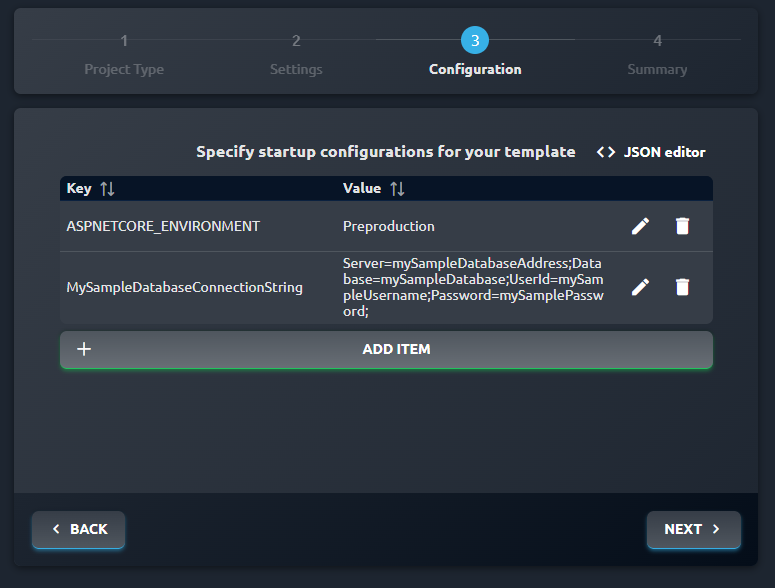
In this step you can provide configuration for your application as key-value pairs. New variables can be added by pressing ADD ITEM button.
cautionVariables specified in creating App Template will be overridden. Any configurations not listed here will be added and available in your App code.
If your
.zipfile contains anappsettings.json, its values will also be used at runtime — even if they are not visible in this dialog.This configuration step lets you override or keep those existing values. Using
appsettings.jsondirectly can be helpful when a user prefers to manage settings from the file rather than through the ProconTEL 4 GUI. This is intended behavior, not a bug.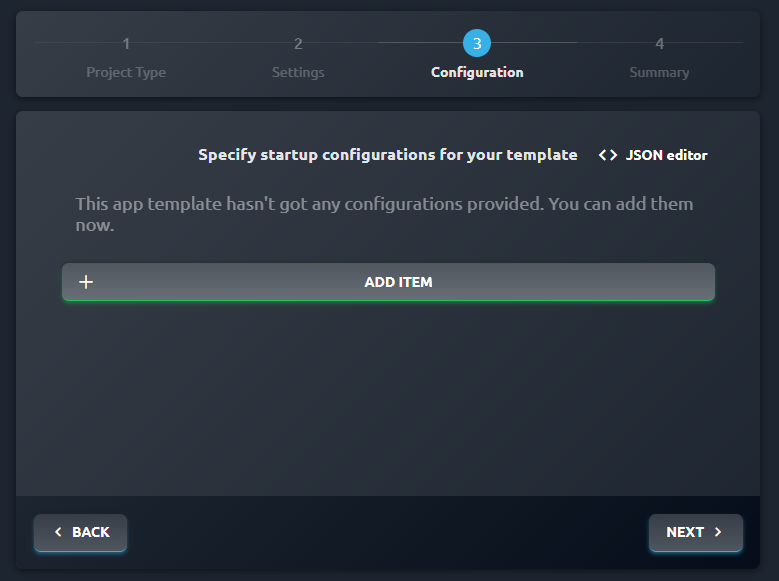
You can choose to override or leave configuration as it is. Configuration items can be sorted by key or value by clicking on table headers.
infoTo specify nested configurations we use
__(double underscore) syntax. If we would like to override configuration of SQLite connection string of App created section earlier we would specify it asConnectionStrings__SQLiteand then provide the value.It's also possible to edit configuration as .json file. You can read more in this article.
tipAdding a variable with a name that already exists will update its value.
After specifying your configuration click NEXT to proceed to summary view.
Review the information about your new App Template on the summary screen and click CREATE APP TEMPLATE to finish creating the template.
Your template is now ready to use.
Method 2: Command line via pct-tools (.NET 6)
You can also utilize our command line tools to quickly push your .NET 6 solution to ProconTEL 4. Here's how you can use it from within the Package Manager Console in Visual Studio 2022.
- Make sure ProconTEL Tools are installed. From Visual Studio, click Tools, and then NuGet Package Manager. Then, select "Manage NuGet Packages for Solution". Locate
ProconTel.Toolsfrom "Browse" using the Nexus.Macrix ProconTEL2022 package source and install it if it's not already installed. - Load the solution containing your ProconTEL 4 compatible project in Visual Studio 2022.
- Open the Package Manager Console from Tools -> NuGet Package Manager.
- Simply type
push-pctappto upload your App to ProconTEL 4. This command will build and publish your App automatically, then upload it to ProconTEL 4 App Templates. - By default, the App Template name and alias are the same as the name of your project in Visual Studio 2022.
- Your App Template is now ready to use.
If you are using pct-tools locally, it's enough to simply use push-pctapp command.
Parameters for push-pctapp command
-alias <alias> changes App Template Alias. It's used to identify if App Template should be created or updated. In the case when Alias already exists, App template will be updated.
-username <myUser> -password <myPassword> uses password authentication. Useful for remote repositories
-url <https://procontel.local:9800> defines remote repository where App Template should be created/updated
If an App Template with the same alias already exists, new revision of the template will be created.