Creating and Running the App
Your first App instance in ProconTEL 4
After completion of uploading App Template, we are ready to create our App.
Admin console
To be able to add Apps you need to have at least one Workspace created
App instances can be created at Apps section by clicking on CREATE APP button.
App creation wizard
Let us quickly walk you through App creation wizard and create new App instance.
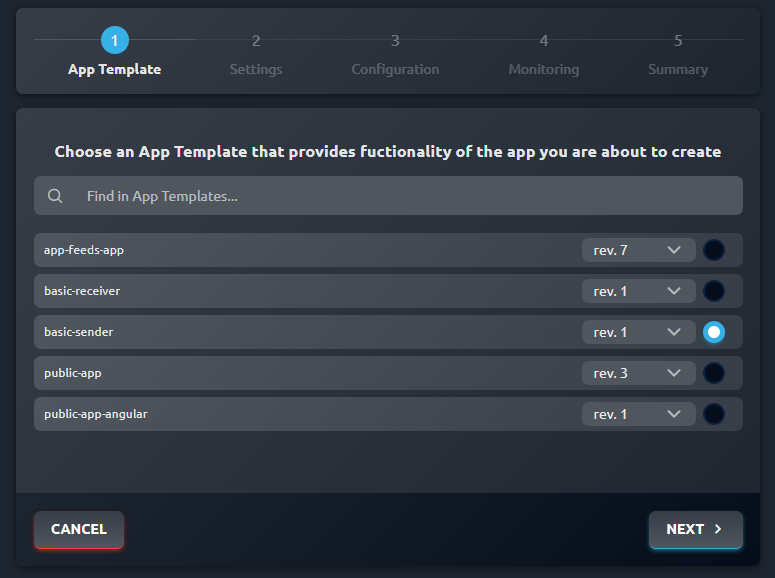
Step one - selecting App Template
To create App we need choose one of our App Templates which were created here and added to ProconTEL 4 here from the list. After picking one of them, let's proceed with NEXT.
Step two - basic setting of the App
Here we can specify an unique alias, description and the lowest level of logs for our App. Then, we click NEXT.
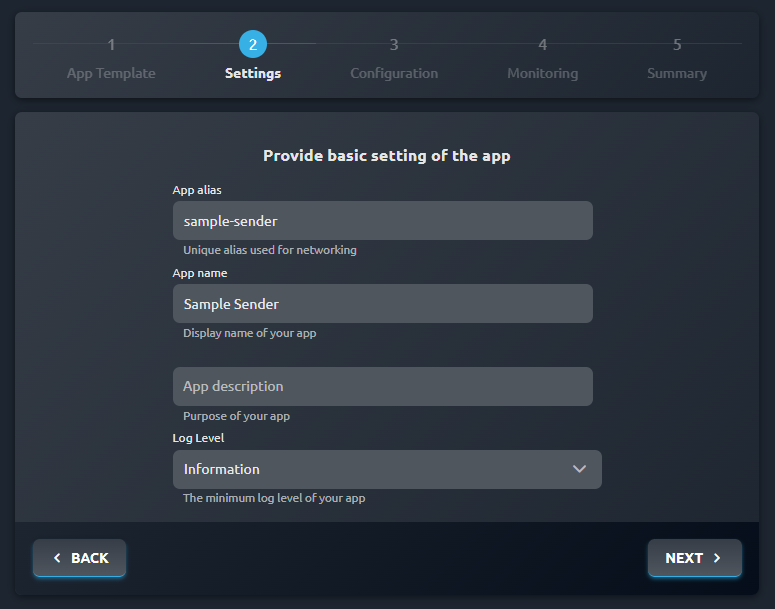
Alias can only consist of basic lowercase letters, numbers and hyphens. It has to be unique, it will be used as name, part of url's and in CLI tools.
Step three - specifying App configuration
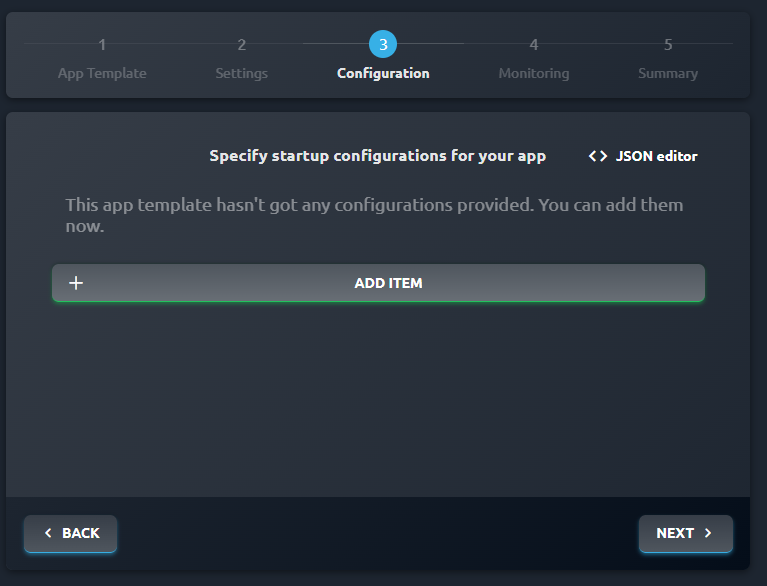
Now to configuration part. Configurations which are displayed are inherited directly from the App Template selected in previous step. You can tweak them to suit your needs. In this tutorial, we will stick with the default (specified by App Template) one. Click NEXT.
If the App Template contained an appsettings.json file, its values will be used during runtime — even if they are not shown in this step.
These settings can still be overwritten here in the wizard. The GUI values will take priority at runtime if changed. This allows flexibility: you can either configure your App in the .json file or override values here as needed. You will find more information about how configuration works here.
Step four - monitoring
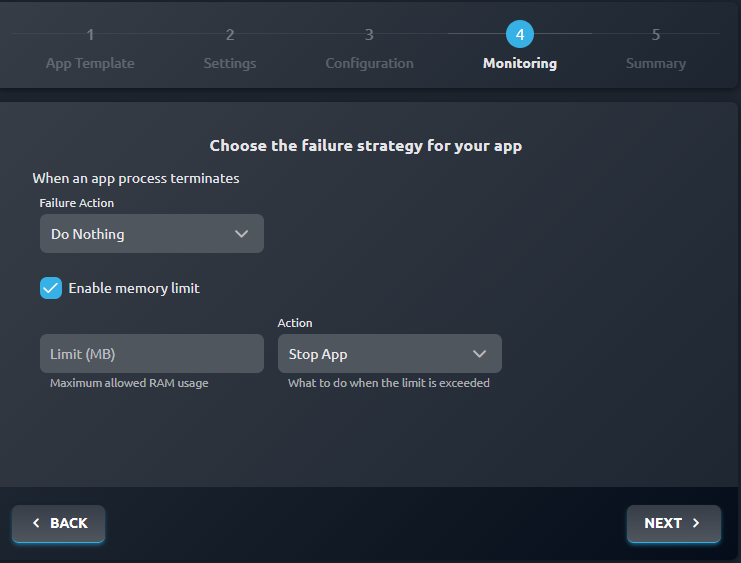
In this step we can specify policy in case of our App process failing. After setting those we can proceed further. Additionally, it is possible to enable a memory limit for the app (disabled by default). When the checkbox is checked, once the set amount of memory usage is exceeded for the app process, the app will terminate or restart, depending on the chosen action.
Failure action and memory management settings currently only apply to the Windows version. In Kubernetes version there will always be an attempt to restore the application.
Step five - summary
Here we can check summarized information about our App instance given in all of steps. To create the instance just click CREATE APP. After successful creation you'll be taken to Apps summary page.
Recap
As you can see creating instances of Apps is very easy and straightforward. Your App can be now used to leverage powers of ProconTEL 4. 💪