Keycloak Preparation
This section provides detailed information about how to prepare the Keycloak server to be able to accept connection from ProconTEL 4.
How to prepare Keycloak
- Add required realm roles
- Add two "realm roles",
pct-adminandpct-user. These roles are needed for ProconTEL 4 UI access management. - Each user must be assigned to at least one of the two roles.
- The
pct-adminuser, unlike thepct-user, has access to "external users" management.
- Add two "realm roles",
How to create and assign roles
- In the Keycloak Administration Console, open your realm.
- Go to
Realm roles. - Select
Create role. - Create the
pct-adminrole. - Create the
pct-userrole. - Go to
Usersand open the user that should be able to sign in to ProconTEL 4. - Open the
Role mappingtab. - Assign
pct-userto regular users. - Assign
pct-adminto administrator users. - A user may have both roles assigned if required by your access model.
- Save the changes and make sure the user signs out and signs in again to receive an updated token.
Expected role mapping in ProconTEL 4
pct-useris mapped to the ProconTEL roleuser.pct-adminis mapped to the ProconTEL roleadmin-external.
Realm roles configuration
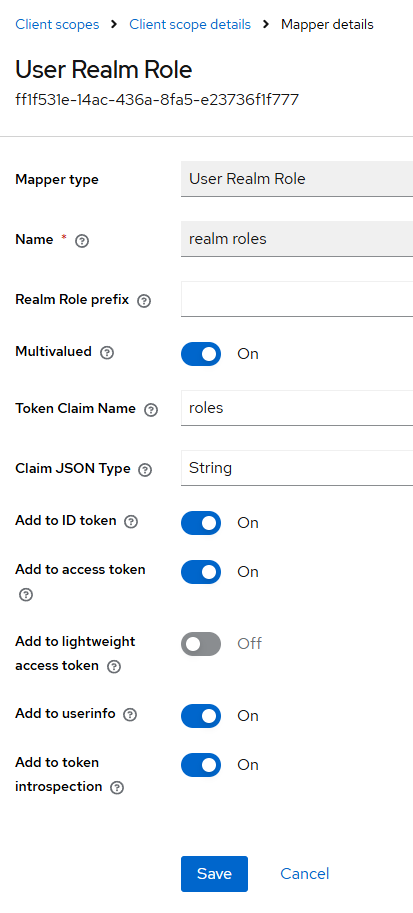
- Check if client scopes contain the right configuration as below.
- In main menu go to: "Client scopes" -> "Roles" -> "Mappers" -> "realm roles".
- Check if your configuration is the same as below.
Client configuration
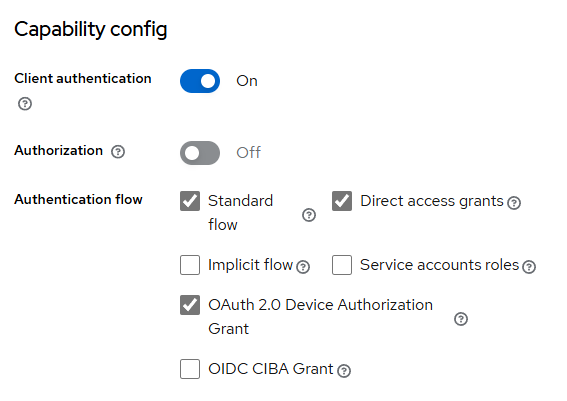
- In main menu go to: "Clients" and select "your client".
- Check if "Valid redirect URIs" is assigned to PCT4 main Uri.

- Check if "Capability config" is configured as below.
Importing the "Client" configuration
Optionally, it is possible to import the "Client" configuration from a file available at pct4client.json. To import the configuration:
- Download the config file.
- In main menu go to: "Clients" then select "Import Client".