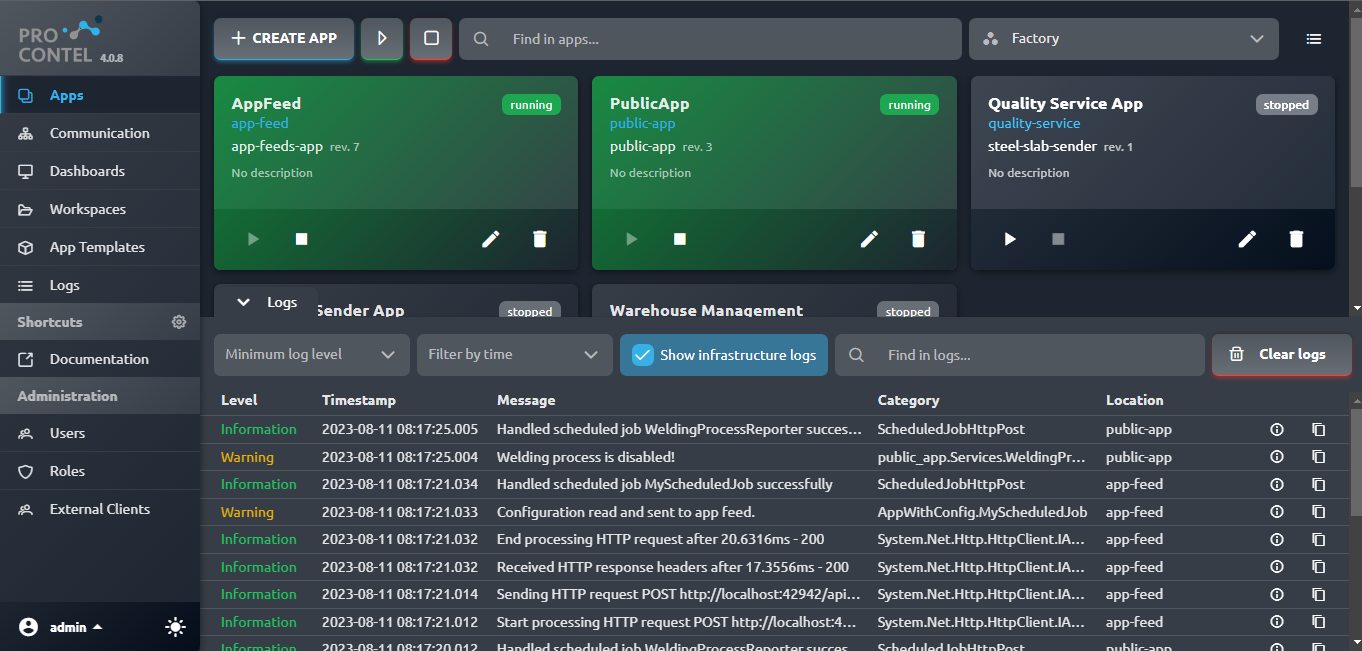
UI Overview
This section provides a tour of ProconTEL 4's User Interface and its many useful features. The UI is divided into three sections containing several views each.
Solution
This section of the UI provides an overview of your current ProconTEL 4 solution and allows you to manage it via the sections described below.
Apps
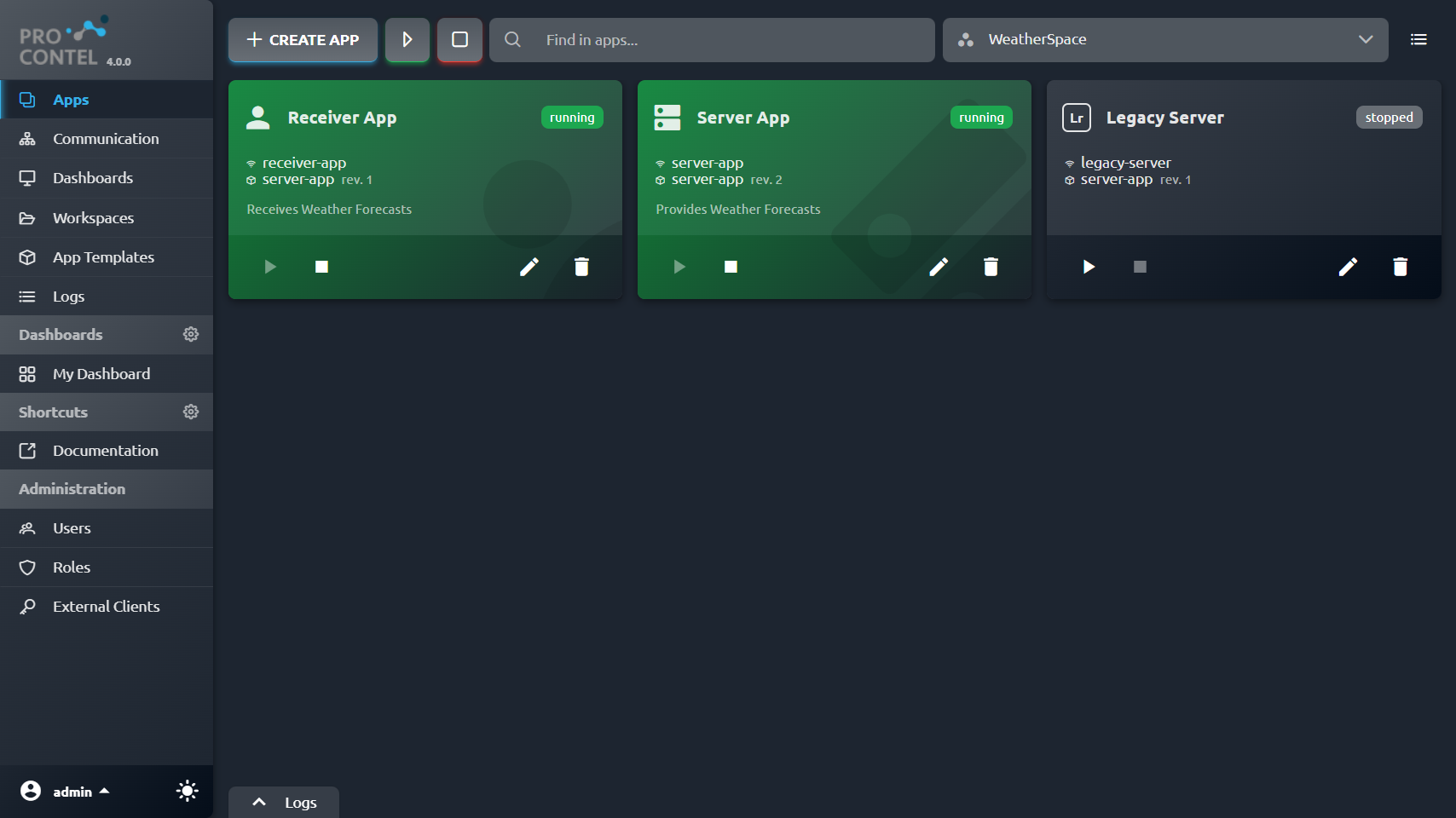
The Apps view allows you to create and manage Apps stored in Workspaces.
All Apps added to the current Workspace are displayed here. The current Workspace can be changed from a dropdown on the top-right of the screen. All Workspace-tied Apps can be deleted, modified, started and stopped here. You can also check your Apps' status.
You can choose between Tiles and List views.
You can assign Icons to apps to help distinguish them from each other. You can read more about this feature here.
We'll discuss Workspaces later in this section.
Communication
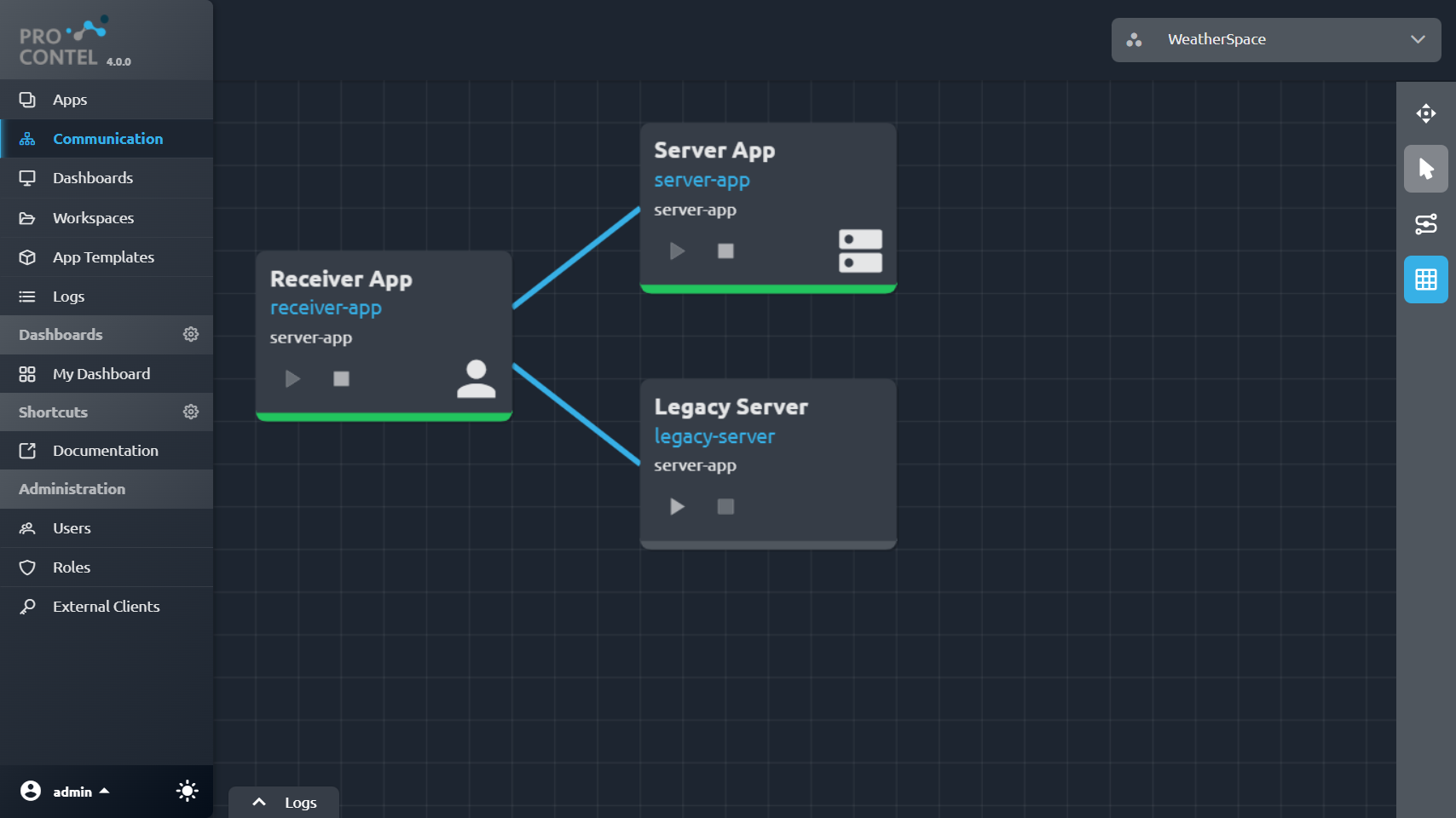
The Communication view is all about defining your Apps' coexistence within their Workspace. Within this view, you can create a communication layout between your Apps using an intuitive, visual diagram.
Dashboards
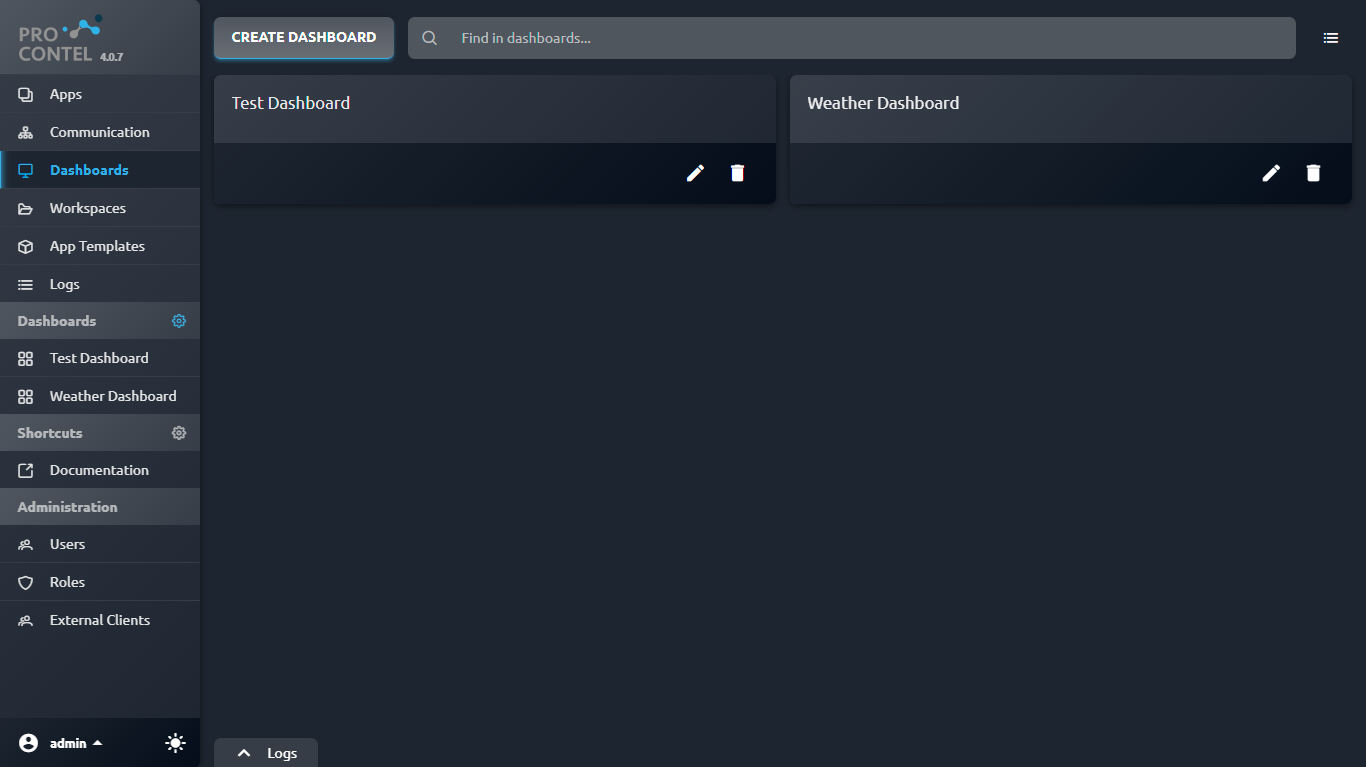
The Dashboards view allows you to manage Dashboards - your own custom views full of useful Widgets providing an at-a-glance view of many parts of your Solution. From there, you can open an existing Dashboard or create, edit and delete existing ones. You can learn more about Dashboards in this article.
Workspaces
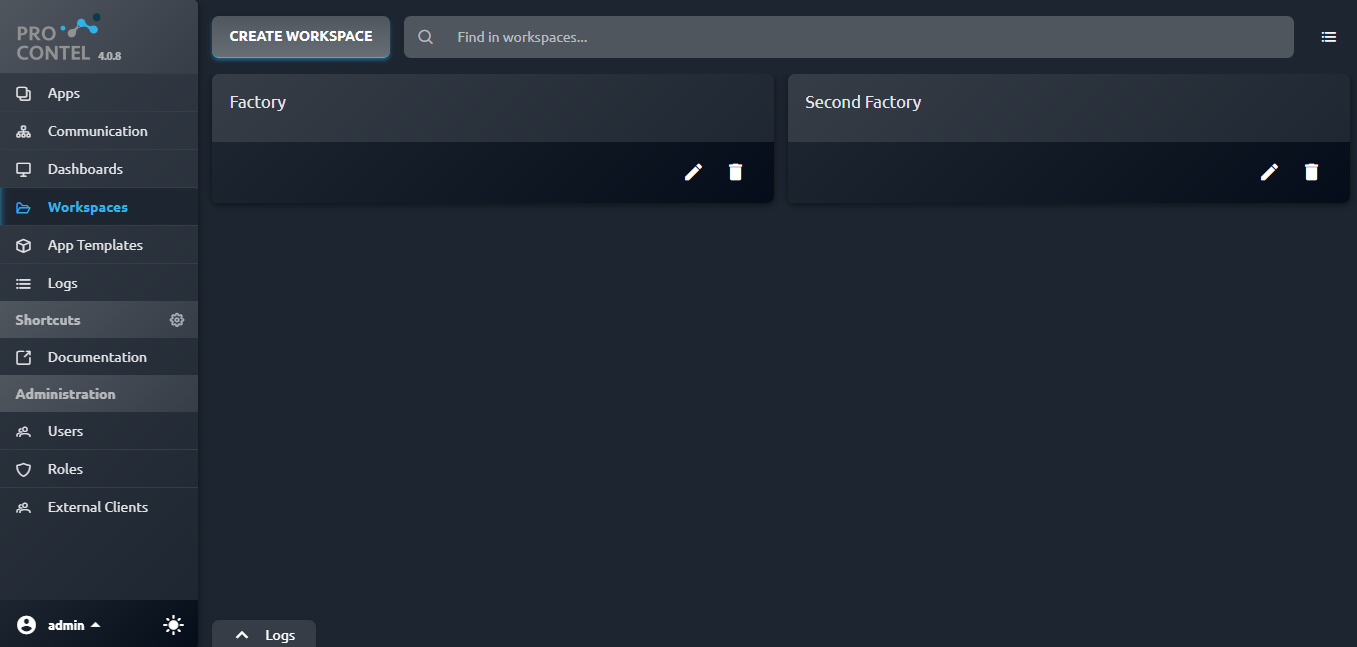
A Workspace is one of the basic building blocks of ProconTEL 4. It is used to store Apps and their communication layout. The Workspaces view allows you to create, edit and delete workspaces.
Repository
This section provides an insight of your uploaded App Templates.
App Templates
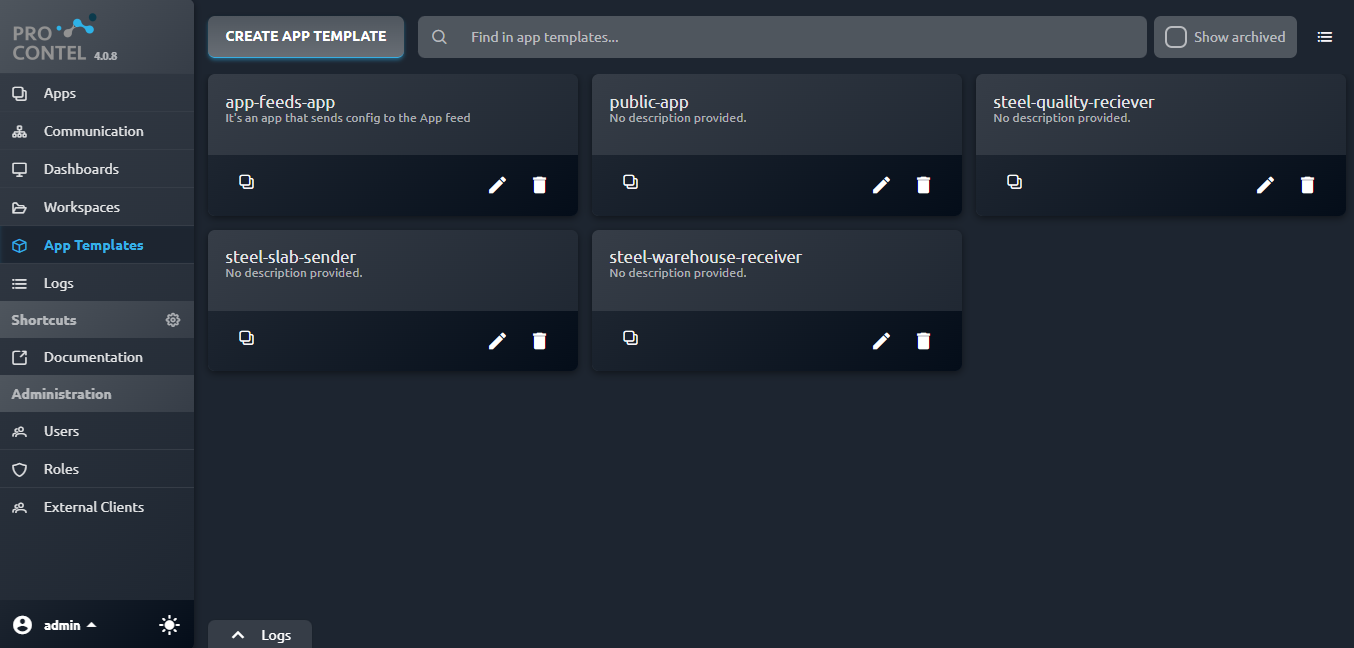
Lists all App Templates available for creating an App. uploading App Templates is explained here.
Status
Logs
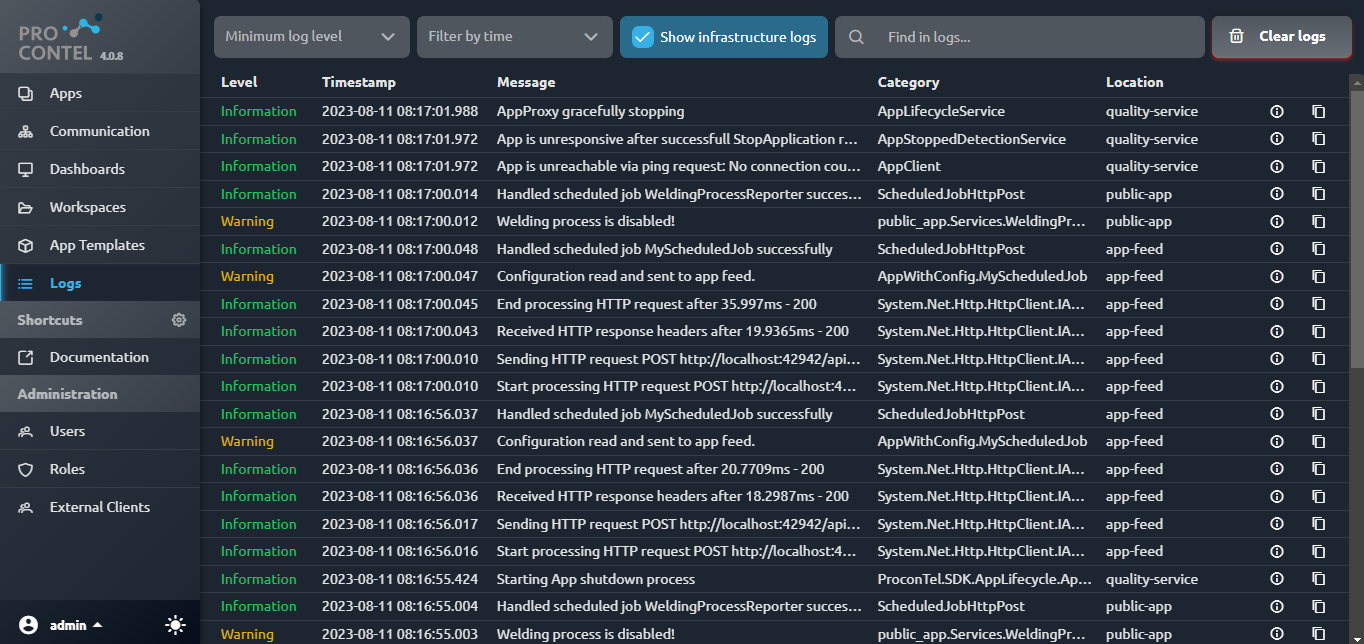
Here you can check the real-time logs of your Solution. Logs can be searched and filtered by date, severity, keywords and more.
You can also view your real-time logs as a slide-out panel across all of ProconTEL 4's UI by clicking on the "Logs" button on the bottom-left of your screen.