ProconTEL 3 Endpoint
This section describes the ProconTEL Bridge Endpoint. This endpoint is able to communicate with ProconTEL 4, which has the Bridge App properly built and running. Enpoint can be used in the ProconTEL 3 environment, starting from version 3.4.2.1.
Download
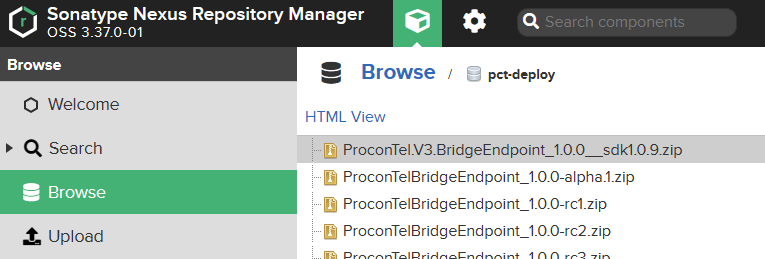
All Bridge Endpoint releases are available on the Macrix Nexus repository.
The file is called ProconTel.V3.BridgeEndpoint_[bridge_version]__sdk[sdk_version].zip
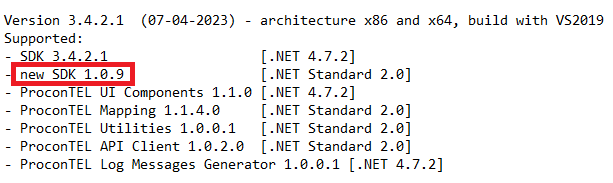
The required SDK version in ProconTEL 3 can be found in Release Notes file located in C:\Program Files\Macrix\ProconTEL\[version]\Release Notes.txt
The credentials for the repository are the same as for the ProconTEL 4 installer. If you do not have them, please contact Macrix.
Endpoint Installation
- Unzip the downloaded zip file.
- Open the Communication Console.
- Go to Plugin Manager.

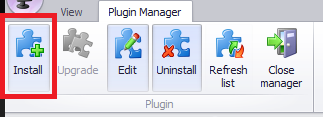
- Click on the Install button located in the upper left corner.
- Click on the three dots in the Plugins assembly files.
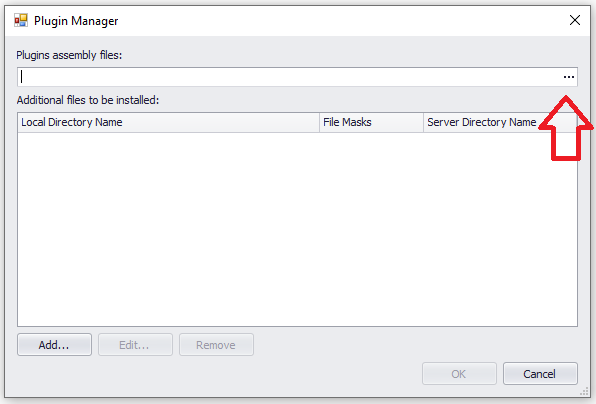
Select the folder where the zip file was extracted and select the ProconTel.V3.BridgeEndpoint.dll file.
Press the OK button.

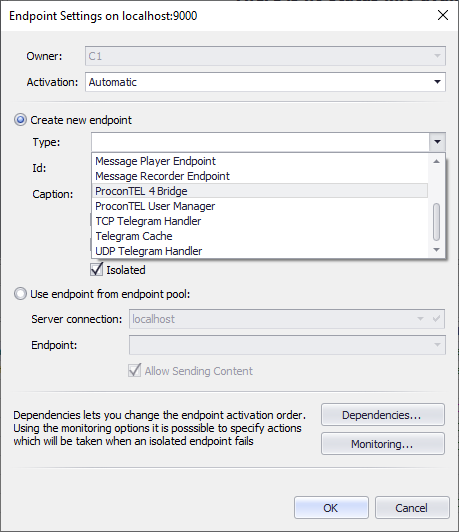
Now the Bridge endpoint should be visible in the endpoints list in Add Endpoint dialog.
Configuration
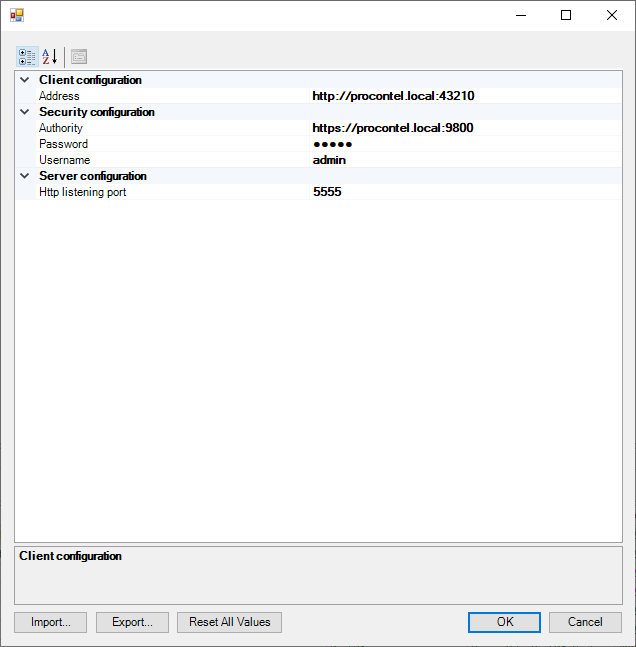
Client configuration
- Address - URL of ProconTEL 4 Bridge, e.g. http://procontel4host:43210
Security configuration
- Authority - Authority URL, e.g. https://procontel4host:9800
- Password - Authority password
- Username - Authority username
Server configuration
- Http listening port - Bridge REST server port
How to find ProconTEL 4 Bridge port?
Please check the ProconTEL 4 logs. When App that implements Bridge Module is starting Microsoft.Hosting.Lifetime logs its listening port. In the example below, the ProconTEL 4 Bridge port is 41619.
